
State Connect Controls & Building Highways
Master drag-to-connect, the HUD, and upgrade panels on Android, iOS, and Windows.
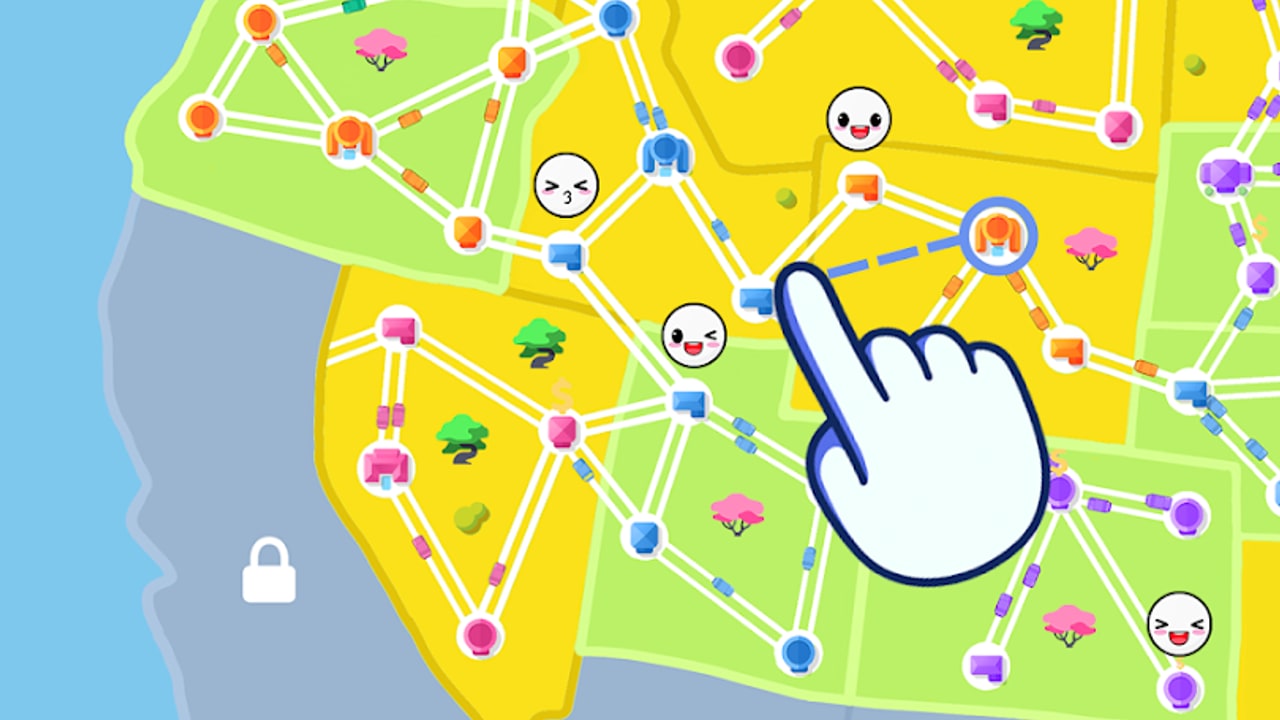
State Connect: Traffic Control is controlled almost entirely by touch or mouse on a living map. You drag from city to city to lay highways, pan and zoom to plan routes, tap cities for upgrade panels, and watch cash and Experience climb while cars drive themselves. This controls guide explains every everyday input so you stop fighting the UI and start building denser networks. Pair it with Getting Started for the first-hour plan and Upgrades Explained once you know where the buttons live.
The game is published by Twin Crab / Casual Azur Games (AI GAMES FZ LLC) and runs on Android, iOS, and Windows. Core gestures are the same everywhere; only pointer precision and screen size change how comfortable long-distance drags feel.
Drag city-to-city to build highways
Every road starts the same way: press on one city, drag toward another, and release when the destination highlights. If you can afford the link, a highway appears and traffic begins immediately. If the drag fails, you are usually short on cash, selecting the same city twice, or trying to connect a city that is not yet unlocked for your player level.
Short local links cost less and teach the feel of the gesture. Long interstate or international bridges look dramatic but drain the cash bar fast—confirm you still have money left for city upgrades after the drag. You do not manually steer cars; once the road exists, the idle loop handles routing. Your job is topology: which cities connect, how dense the cluster is, and when a longer spoke is worth the price.
Tips for cleaner drags:
- Zoom in before connecting tight clusters so you do not miss the target city.
- Zoom out only when planning a cross-region bridge you already budgeted for.
- Cancel a bad drag by releasing over empty land instead of forcing a wrong city.
- Prefer rings and triangles over one lonely spoke into undeveloped land.
Pan, zoom, and reading the map
Pinch (or scroll on Windows) to zoom. Drag empty map space—not a city—to pan. A readable map is half of good control: if cities overlap on a phone, you will mis-tap upgrade panels or start highways you did not mean to buy. Landscape orientation on tablets and Windows makes continent views easier; portrait phones favor local clusters—zoom aggressively either way.
Use the map as a status board. Bright, busy hubs with many links usually deserve the next city level. Quiet frontier cities with a single road are candidates for a second local link before you dump cash into global trees. When the whole visible continent looks fully wired, you may be approaching a soft lock—see Soft-Lock After Europe and Map & Continent Overview rather than assuming the save is broken.
Cash bar, level bar, and upgrade panels
Three HUD pieces matter every session:
- Cash bar — primary currency for highways and most upgrades. Watch it before every expensive drag.
- Level / Experience bar — fills as traffic completes trips. Levels unlock new states and continents; keys may also unlock regions in some progression paths, so a locked landmass is not always a bug.
- Upgrade panels — tap a city for local levels; open the global menus for Speed, Earnings, and Experience.
City upgrades raise how many cars spawn and how valuable that node is. Global Speed shortens trip times, Earnings multiplies payouts, and Experience accelerates leveling. Spend order is covered in depth on the upgrades page; from a controls perspective, learn to open the right panel in under a second so you do not lose focus mid-session.
Crystals or diamonds are premium currency from IAP, rewards, or occasional gifts. They are not required to play, but they can skip waits or buy convenience. Treat them as rare tools, not a second cash bar you must empty every login.
Shop, codes, and gift entry
Open the shop or settings gift field when you need to redeem a promo string. Community codes such as WELCOME, STATECONNECT, and TRAFFIC2024 appear often in trackers; TRAFFIC2024 in particular carries a high expiry risk, so always confirm the live list on Codes before trusting an old screenshot. Enter codes exactly, claim rewards, then return to the map. Do not leave the shop mid-drag planning—finish the redeem, then rebuild your mental budget.
Android vs iOS vs Windows notes
- Android — dominant platform for State Connect. Touch targets are tuned for phones; enable a stable frame rate and avoid aggressive battery savers that pause the app too hard if you care about short AFK windows.
- iOS — same drag-and-tap loop. Watch notch and Dynamic Island safe areas when tapping top HUD buttons; zoom a notch more on small iPhones before connecting dense cities.
- Windows — mouse precision makes long bridges easier, but trackpad users should slow down so they do not overshoot destinations. Windowed play helps if you multitask while banking idle income.
Cloud or device saves vary by storefront. After a big unlock session, leave the app in the foreground long enough for progress to settle before force-closing, especially on mobile data switches.
Common control mistakes
- Mis-taps on dense zoom — upgrade the wrong city or start an unaffordable highway. Zoom first.
- Dragging while panning — lift your finger fully between pan and build gestures.
- Ignoring the cash bar — a failed drag is often poverty, not a broken control scheme.
- Opening shop mid-upgrade plan — you forget which city you meant to level.
- Spiderwebbing from max zoom-out — pretty lines, weak local income. Build local, then bridge.
- Assuming locked land is a control bug — it is usually a level, key, or content gate. Check Unlock Regions.
Practice loop for the first ten minutes
- Pan to your starter cluster and zoom until cities are easy to hit.
- Drag three short links into a triangle or small ring.
- Tap each city once and buy an affordable local upgrade if cash allows.
- Open global Earnings for a single point when income is stable.
- Redeem any active codes from the Codes page.
- Zoom out, identify the next cheap local city, zoom in, connect, repeat.
What to read next
Continue with Getting Started for spend priorities, then Upgrades Explained for Speed / Earnings / Experience. When the map feels finished, read Soft-Lock After Europe and Offline Earnings so waiting periods still grow your bank. Keep gestures clean, keep clusters dense, and let the idle traffic do the grinding while you make a few precise taps each session.
Frequently Asked Questions
Quick answers to the most common State Connect questions.
How do I build a highway in State Connect?
Press one city, drag to another, and release when it highlights. If you can afford the link, the road appears and cars drive automatically.
How do I pan and zoom the map?
Pinch or scroll to zoom, and drag empty map space to pan. Zoom in before connecting tight clusters so you do not mis-tap cities.
Where are Speed, Earnings, and Experience upgrades?
Open the global upgrade menus from the HUD. City taps open local levels; the three global trees multiply trip speed, payouts, and XP.
Where do I redeem promo codes?
Use the shop or settings gift field, enter the code exactly, and claim rewards. Confirm active strings on the Codes page because gifts expire.
Do controls differ on Android, iOS, and Windows?
The drag-to-connect loop is the same. Phones need more zoom for accuracy; Windows mouse input makes long bridges easier to aim.
Why does my drag fail to create a road?
Usually you lack cash, selected the same city twice, or targeted a city that is still locked behind level, keys, or missing content.